

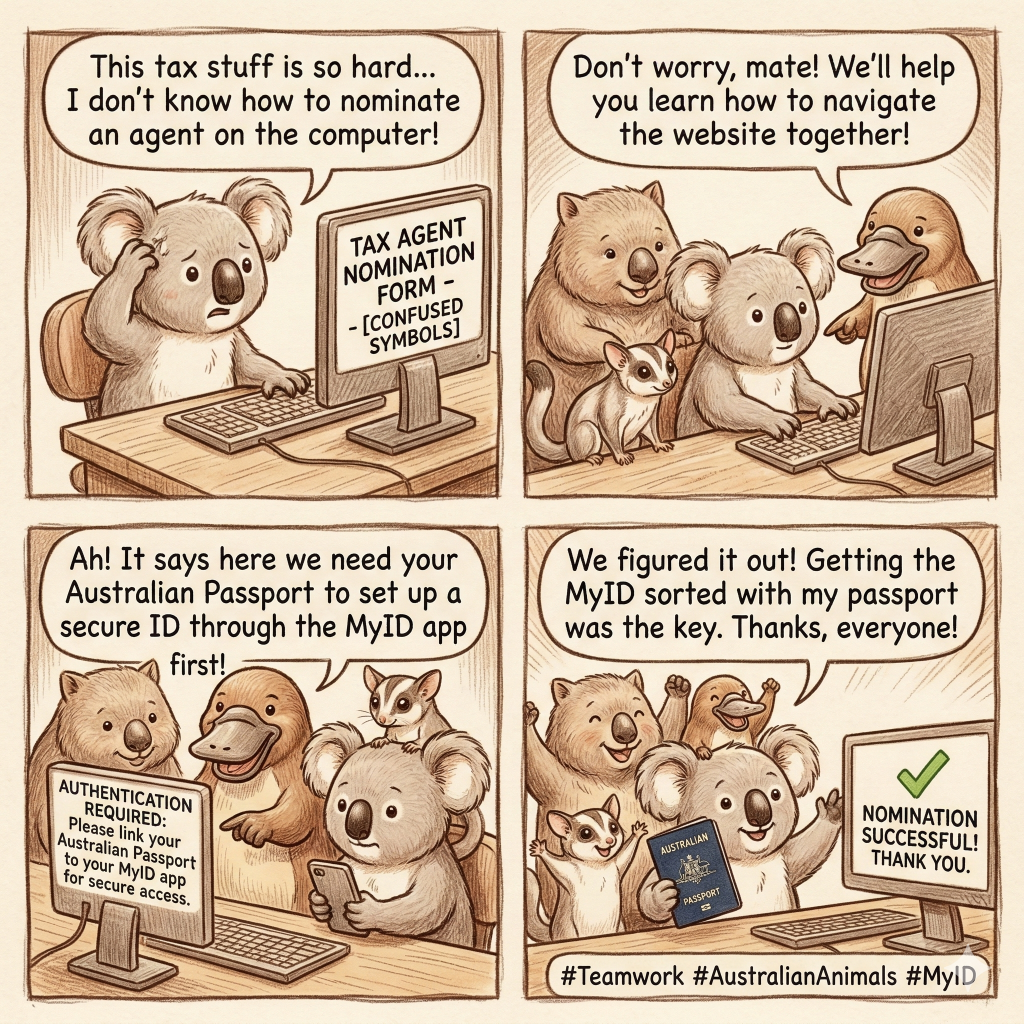
How to Nominate a Tax Agent When They Cannot Add You to Their Portal
If your tax agent is unable to add you to their tax agent portal directly, don’t worry. You can still easily nominate them yourself by following a few simple steps. Here is your comprehensive guide on how to complete the process.

Step 1: Access Services
You need to log in to the Online Services for Business using your myID (formerly myGovID).
To get a strong identity in the myID app on your mobile phone, follow these detailed steps:
- Download the myID app from the App Store or Google Play.
- Open the app and select ‘Create a myID’.
- Enter your email address and set a password.
- Verify your identity by providing personal details, such as your name, date of birth, and address.
- To strengthen your identity, you may need to provide additional identification documents, such as your driver’s license or passport. Follow the prompts to upload these documents.
- Once verified, your myID will be established and you’ll have access to the Online Services for Business.
For detailed troubleshooting on setting up your app, visit the official myID help page.
Step 2: Navigate to Profile
After successfully logging into the Online Services for Business, look for the navigation menu.
- Select ‘Profile’ from the main menu.
- Then, go to ‘Agent details’.
Step 3: Add Agent
Once you are in the ‘Agent details’ section, you will see a list of your current authorised agents (if any).
- Click on ‘Add’ in the Agent nominations section to begin linking your new accountant.

Step 4: Search for Agent
You will need your new tax agent’s details handy for this step.
- Enter your agent’s Registered Agent Number (RAN) or their registered practice name.
- Select your agent from the search results.
- Take a moment to carefully verify their details on the screen to ensure you are nominating the correct practice.
You can read more about the official ATO process on their agent nomination guide.

Step 5: Submit
After confirming you have selected the correct agent:
- Read and complete the required declaration.
- Click ‘Submit’ to finalize the nomination in the ATO system.

Step 6: Notify Your Agent
Important: The ATO does not send automatic notifications to tax agents when they are nominated!
Inform your tax agent immediately about the nomination. Let them know you have completed the steps so they can now log into their system, accept the nomination, and officially add you to their portal. By following these steps, you can successfully nominate a tax agent, ensuring they can assist you with your tax matters without delay.

Need Professional Assistance?
Navigating business portals and tax requirements can be tricky. If you have any problems or need expert guidance with your accounts and tax lodgements, we are here to help.